
Pocket Option Broker: Quick Trading, Demo & Account Features
Find Pocket Option official site access, learn how registration and login work, explore $50,000 QT Demo access and check deposit, withdrawal and country restrictions. Rating Broker is an independent directory, not the operator.
Pocket Option official site access: sign up, log in or try QT Demo
Looking for the Pocket Option official website or a way into Quick Trading? Pick the access route that matches your goal. New users can follow registration, existing users can sign in, and visitors interested in practice trading can explore the Free Demo entry without first creating an email account where that option is available.
Rating Broker is an independent directory. The primary account button above uses a disclosed partner registration link; it does not directly launch guest demo mode. Choose the Free Demo option on the operator's current website for guest practice.
See the registration and login guide ↘- 01Sign up — new Pocket Option account
Check the official destination after the partner redirect, then follow the email or supported sign-up method. Registration steps →
- 02Log in — existing account
Use the account's original sign-in method. Password recovery and Google-account access are explained separately. Login guidance →
- 03Free QT Demo — practice without funding
Look for the operator's Free Demo entry or switch to QT Demo after registration. Virtual results are not withdrawable. Two demo routes →
Pocket Option Trading Account Overview
Pocket Option provides a browser-based Quick Trading workspace, QT Demo and separate account menus for funding, withdrawals and profile verification. On the platform, Quick Trading is the expiry-based product; the displayed payout and selected duration apply to the chosen contract rather than a guaranteed return.
For visitors deciding whether to open an account, the important distinction is between published starting amounts and account-specific cashier limits. The operator advertises a $5 starting deposit and a $1 minimum trade, but the available deposit route and country may show a different minimum. Our archived account captures document the interface rather than promising current availability.
Account-access route: disclosed partner link. Rating Broker is not Pocket Option's official website; affiliate buttons may redirect to the operator or an eligible regional entry path. Confirm the final domain and country access before supplying login or payment details.
Pocket Option Quick Trading Platform
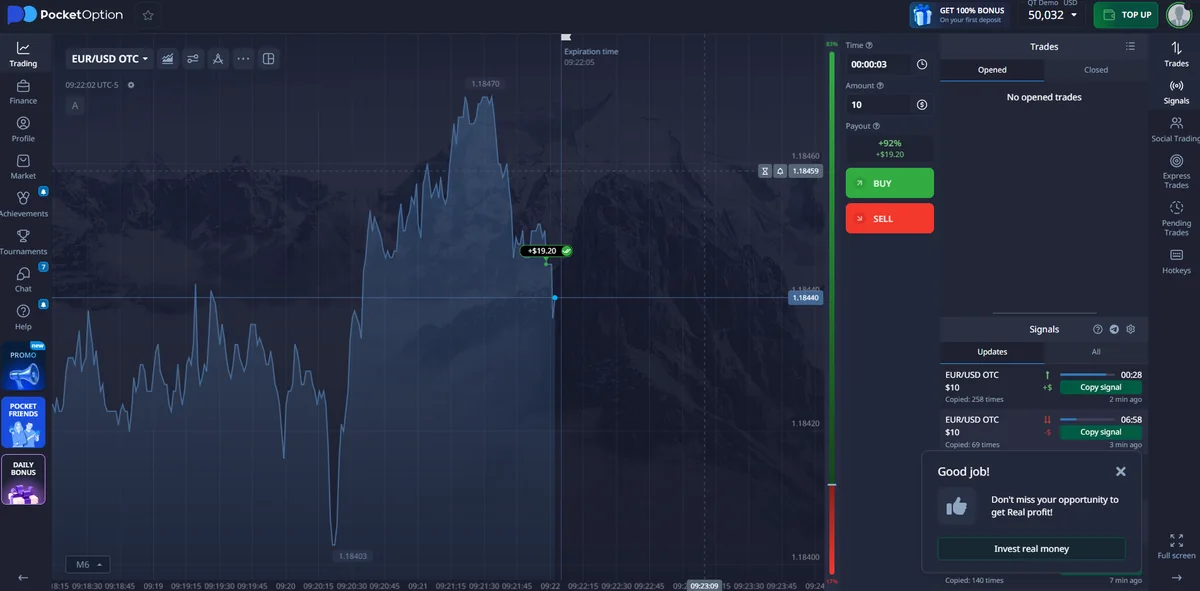
The Quick Trading screen places the asset chart at the centre of the workspace. The instrument selector appears near the chart, while trading controls handle order time, amount and trade direction. The account records open and closed trades in a separate history area so users can return to previous activity.
The order panel displays a payout indicator for the selected asset and session. This is a contract-specific indicator, not a fixed percentage across every symbol. Asset availability and displayed values can vary when the trading session, instrument or account mode changes.
A saved English-language platform capture shows the chart, buy and sell controls, the account header and several secondary trading widgets. It is included below as an example of the actual interface rather than a reconstructed advertisement.
Asset selection and trading controls
After opening the trading screen, the user selects an available asset, checks its current chart, chooses the relevant time setting and enters a trade amount. The interface then displays the appropriate action buttons. Indicators, drawings and signal-related panels are separate chart tools; they do not change the account type or the basic order sequence.
Quick Trading should not be confused with a conventional exchange order book. Its duration and displayed payout are part of the selected contract. For real-money orders, these details should be visible before submitting the trade.
Pocket Option QT Demo Account
Pocket Option advertises a $50,000 virtual QT Demo balance. The public Free Demo route can be explored without adding funds or first completing a conventional email registration. The exact guest entry flow can vary with device and country.
Demo without registration
Use the Free Demo entry on the operator's site, check the virtual balance and try the chart, asset selector, trade amount and expiry controls. A guest demo is not a verified payment account.
Demo after sign-up
Create an account through the registration flow, then select QT Demo from the account interface. This provides access to account navigation alongside the practice workspace.
In both paths, virtual results cannot be withdrawn. The $50,000 figure is the operator's published starting demo amount, not a guaranteed balance for every session or a statement about real-money performance.
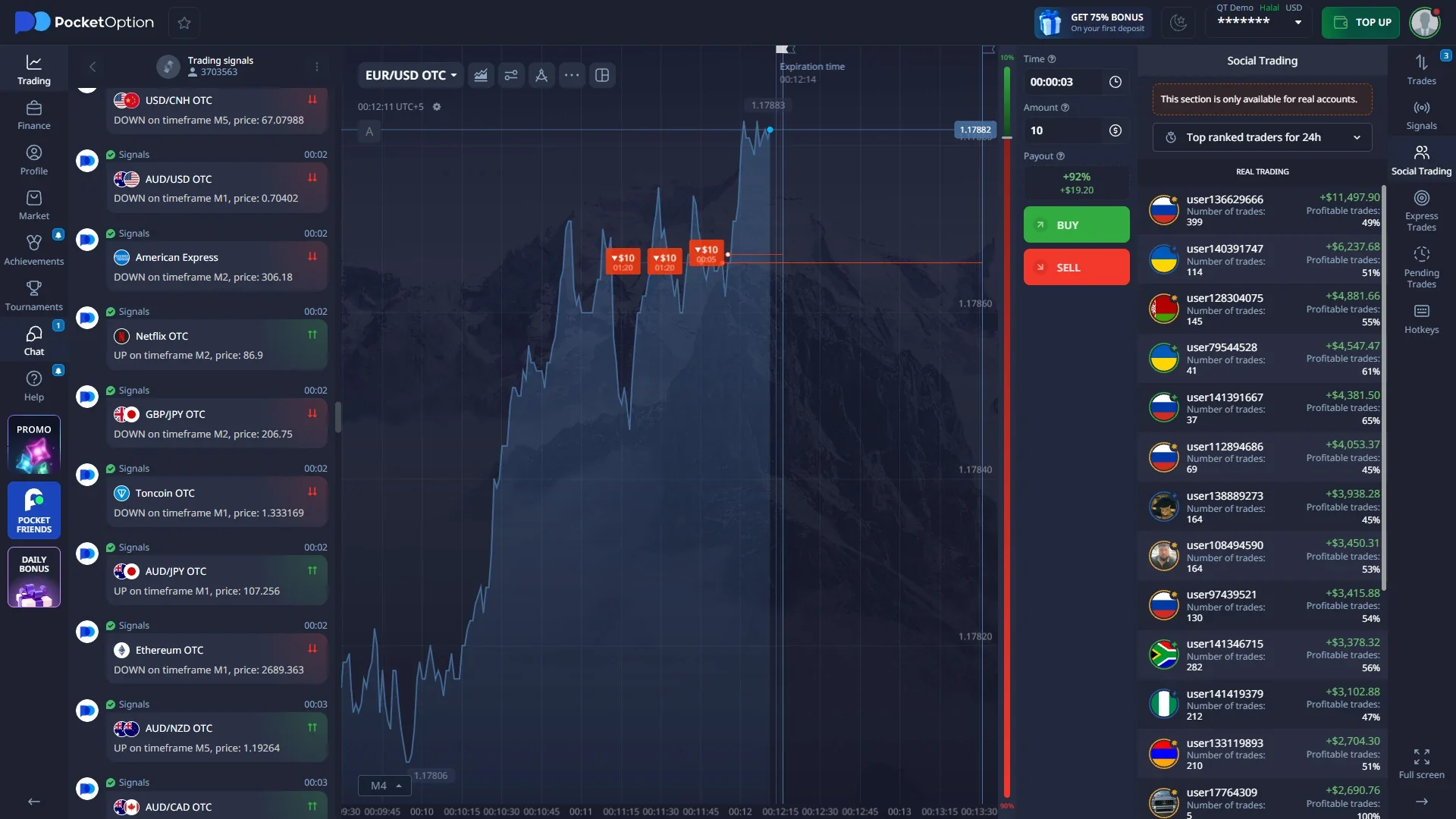
October 2026 QT Demo observation. In a separate first-hand account check, the EUR/USD OTC ticket showed a $10 amount, a three-second trade time and a 92% displayed payout for that particular session. BUY/SELL controls and the Signals panel were visible, and a practice position was opened. This is a dated example of a very short Quick Trading ticket, not a universal minimum expiry, a guaranteed payout, or evidence of real-money results. The detailed account test is linked in the directory section below.
Explore QT Demo and account access. Open the Pocket Option platform to view the trading workspace and available account modes.
Open Pocket Option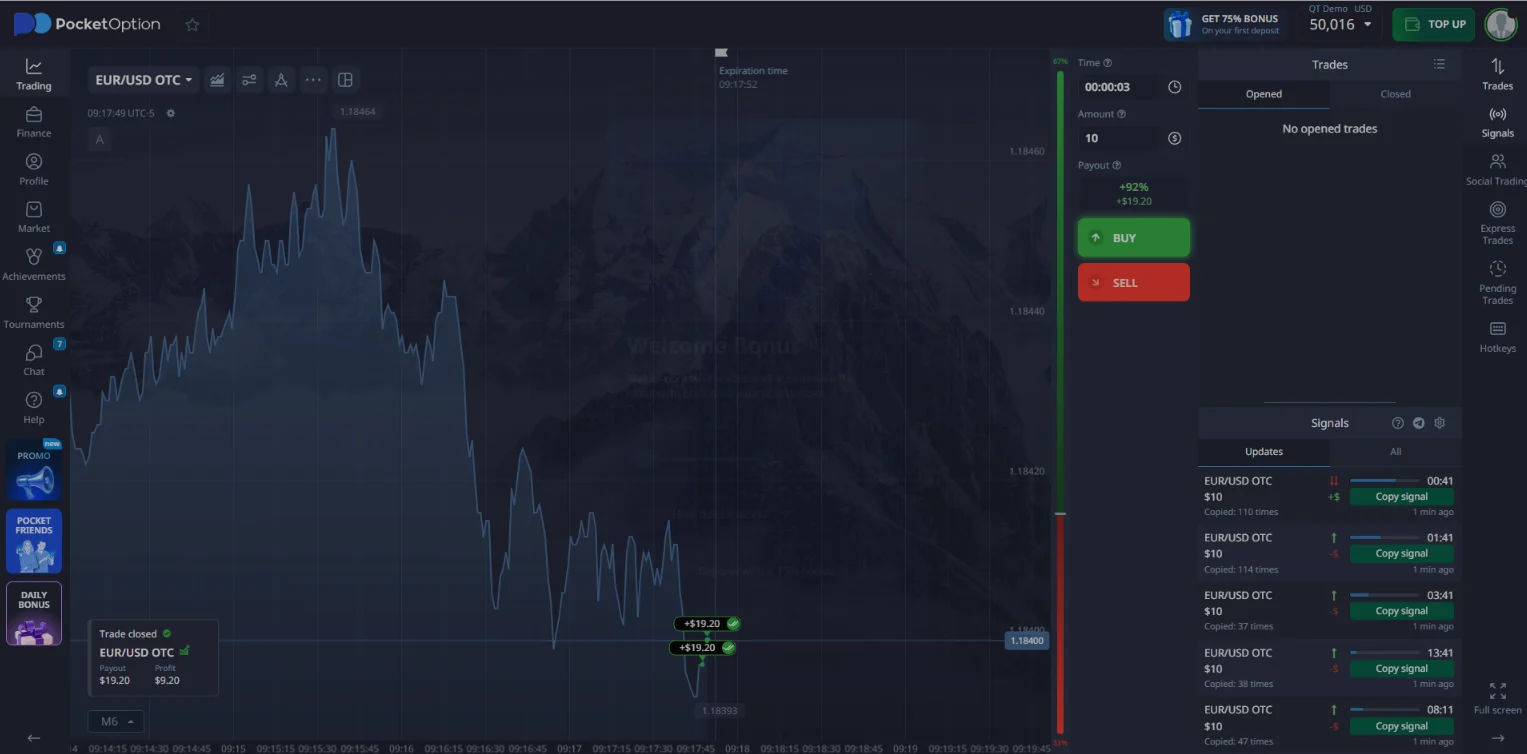
Pocket Option Registration and Login
Official site access: use the disclosed account link in this guide. Choose Registration to create a new account or Log In if you already have one. Rating Broker is an independent informational directory and does not process credentials.
How to register on Pocket Option
- Open the operator's registration page. Confirm the destination domain after any affiliate redirect.
- Choose an account creation method. The operator's quick-start guide describes email registration and Google authorization.
- Enter accurate profile details and complete the required consents. Eligibility and local product availability depend on your country.
- Open QT Demo before funding. Inspect the selected trading mode, chart controls and virtual balance.
- Review verification and payment rules. Identity and address information may be requested in the profile area before withdrawal access.
Registration and account access. Use the disclosed broker registration route; confirm the destination before entering details.
Sign up on Pocket Option
Pocket Option login, sign-in and password recovery
Existing users should choose Log In, not Registration, and use their original email or linked sign-in method. If email-password access is unavailable, use the platform's password-reset flow. The official guide notes that Google-created accounts may need a password reset to enable conventional email-and-password sign-in. Do not enter passwords on this independent directory or unfamiliar mirror pages.
Demo account versus real account
QT Demo uses virtual funds; Real Account uses deposited money. Changing the mode does not turn demo profit into a withdrawal balance. Funding and withdrawals follow the separate cashier rules, verification checks and jurisdictional restrictions.
Charts, Indicators and Trading Tools
Besides the basic Quick Trading order ticket, the operator describes technical indicators, drawing tools, trading signals, express or pending trades and social or copy-trading features. These are separate functions, not evidence that a trading prediction will be correct.
Pocket Option AI Trader: session settings (August 2026)
The operator introduced a session-based AI Trader mode on 9 August 2026. Its 28 August explainer describes four choices made before a session starts, instead of an indefinite background trading process. The settings below come from the operator's published instructions; we have not independently tested a funded AI Trader session.
| Setting | What it changes |
|---|---|
| Asset | Select the instrument for the session; the choice stays fixed during that run. |
| Trade count | Set 2–20 trades before the session starts. |
| Starting amount | Choose the initial amount allocated to that defined session. |
| Strategy | Select the available strategy before launch; settings cannot be changed midway. |
The session ends after the preset number of trades. Review the offered product, account mode, exposure and risk before starting. The tool's name or strategy setting is not evidence of a profitable or low-risk result.
AI Trader is distinct from manually configuring chart indicators and from copying another user's trades. No win rate, profitability or safety guarantee is established by the feature's name. The independent platform profile focuses on locating these tools, not reproducing a separate experimental performance test.
Pocket Option trading signals and Copy Signal
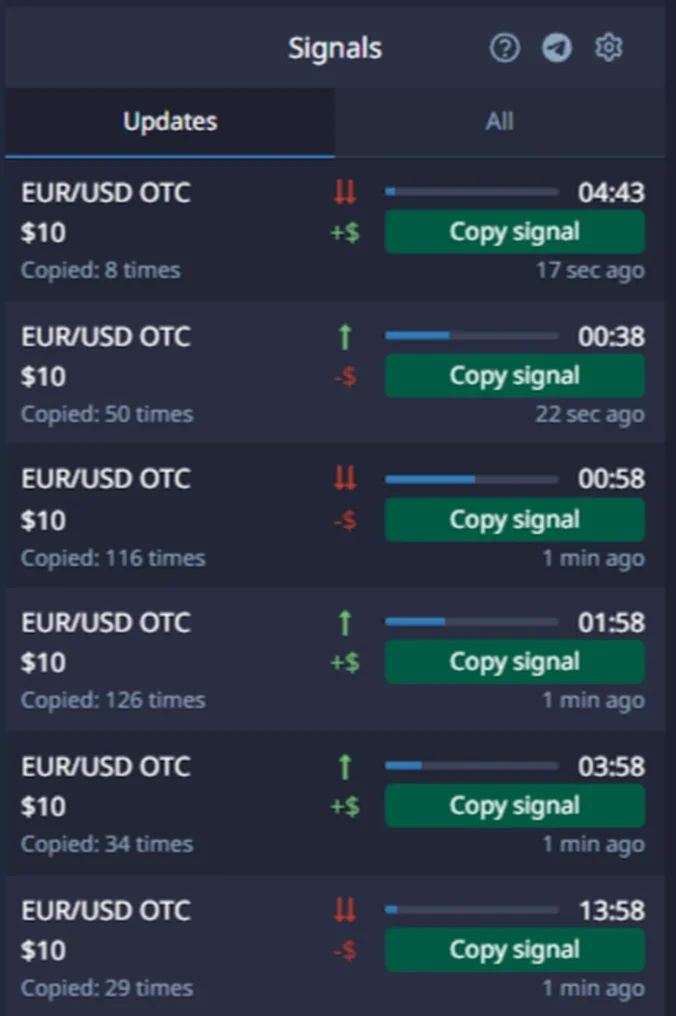
The Signals panel in our account screenshots listed assets, Up/Down directions, timeframes and a Copy signal action. A signal is a prompt shown by the interface; it is not an independently verified prediction. In the recorded QT Demo session, the Copy signal action could be used in virtual practice, but that observation does not establish a win rate or real-money execution.
To inspect it, open the Signals panel alongside Quick Trading, read the asset, timeframe and remaining interval, then check the amount and expiry in the ticket before acting. Always distinguish the panel's suggested direction from an actual completed order.
Pocket Option Social Trading and copying other traders
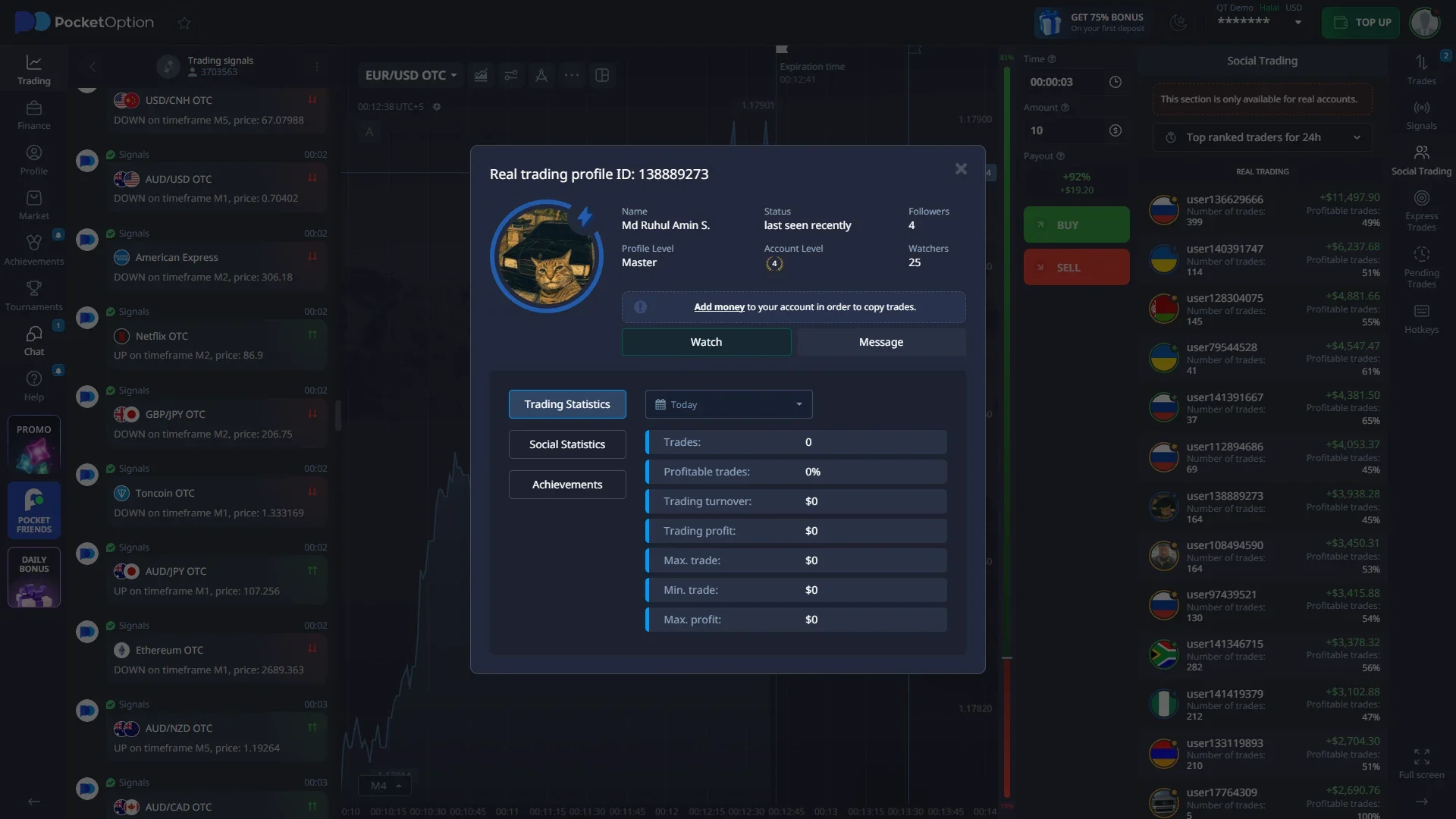
Social Trading is different from the Signals panel. It lets account holders inspect a ranked list of traders and open individual profiles. The captured interface included ranking filters and performance figures; those on-screen numbers are historical account displays, not verified future returns.
Our separate account check opened a trader profile and displayed “Add money to your account in order to copy trades.” In that session, viewing traders was possible, but copying a trader was unavailable without funding a real account. That restriction may differ by account or country; we did not place or evaluate a funded copy trade.
The operator's general documentation describes copy settings such as proportional size, minimum and maximum copied amounts, and Stop Balance. Check which controls are actually available before enabling copying, and do not treat a rank or return figure as a guarantee.
Trading tools in practice
Choose the product and available asset, inspect the current displayed payout and expiry, then adjust the amount before submitting a direction-based contract. On-screen availability may differ between demo and real account, and between mobile and desktop.
Pocket Option Deposits and Available Payment Methods
The operator advertises a starting deposit from $5. That is a published platform entry figure, not a promise that every card, bank or cryptocurrency option accepts $5. The archived account evidence on our other project showed route-specific amounts around $10–$30 in some payment screens. Treat those as historical observations, not global minimums.
The exact amount depends on country, currency, provider, transaction rail and active cashier choices. Check the deposit minimum next to the payment method actually selected. Use the operator's Finance / Deposit flow, not an image or outdated comparison table, to confirm what is currently available.
Deposit process and account checks
- Log in to an eligible account and open Finance / Deposit.
- Choose the available payment method and review its minimum and displayed currency.
- Check any provider conversion fees, the destination details and the account holder requirements.
- Confirm the deposit only if the method and limits match your needs.
The published $1 minimum trade concerns the individual Quick Trading contract and must not be confused with the minimum deposit.
View Pocket Option payment options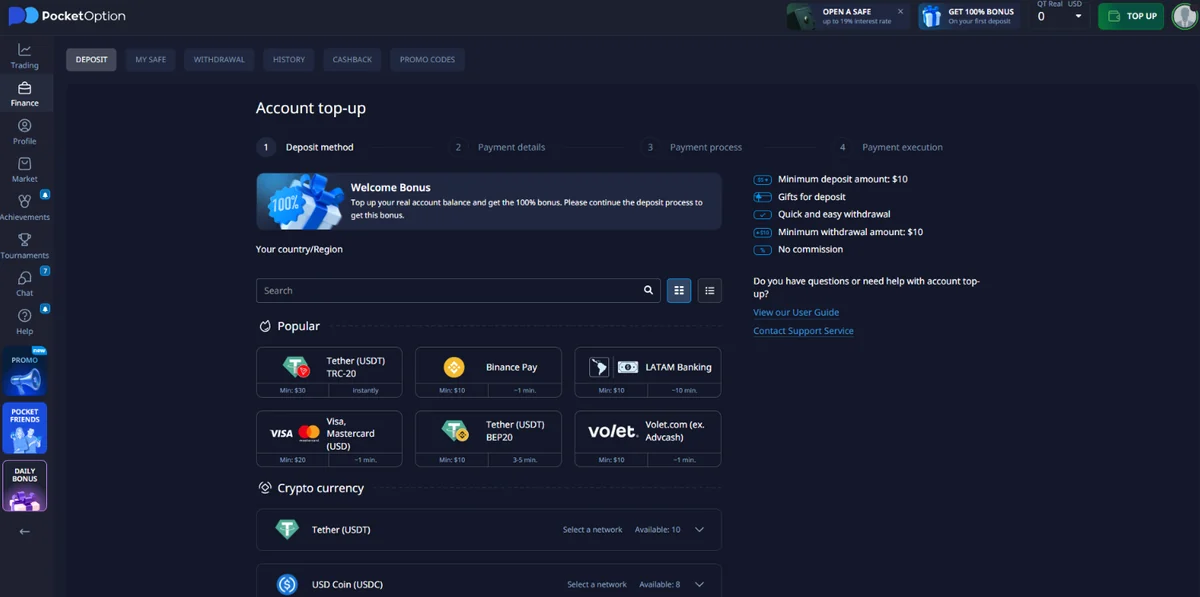
Pocket Option Withdrawals and Account Balance
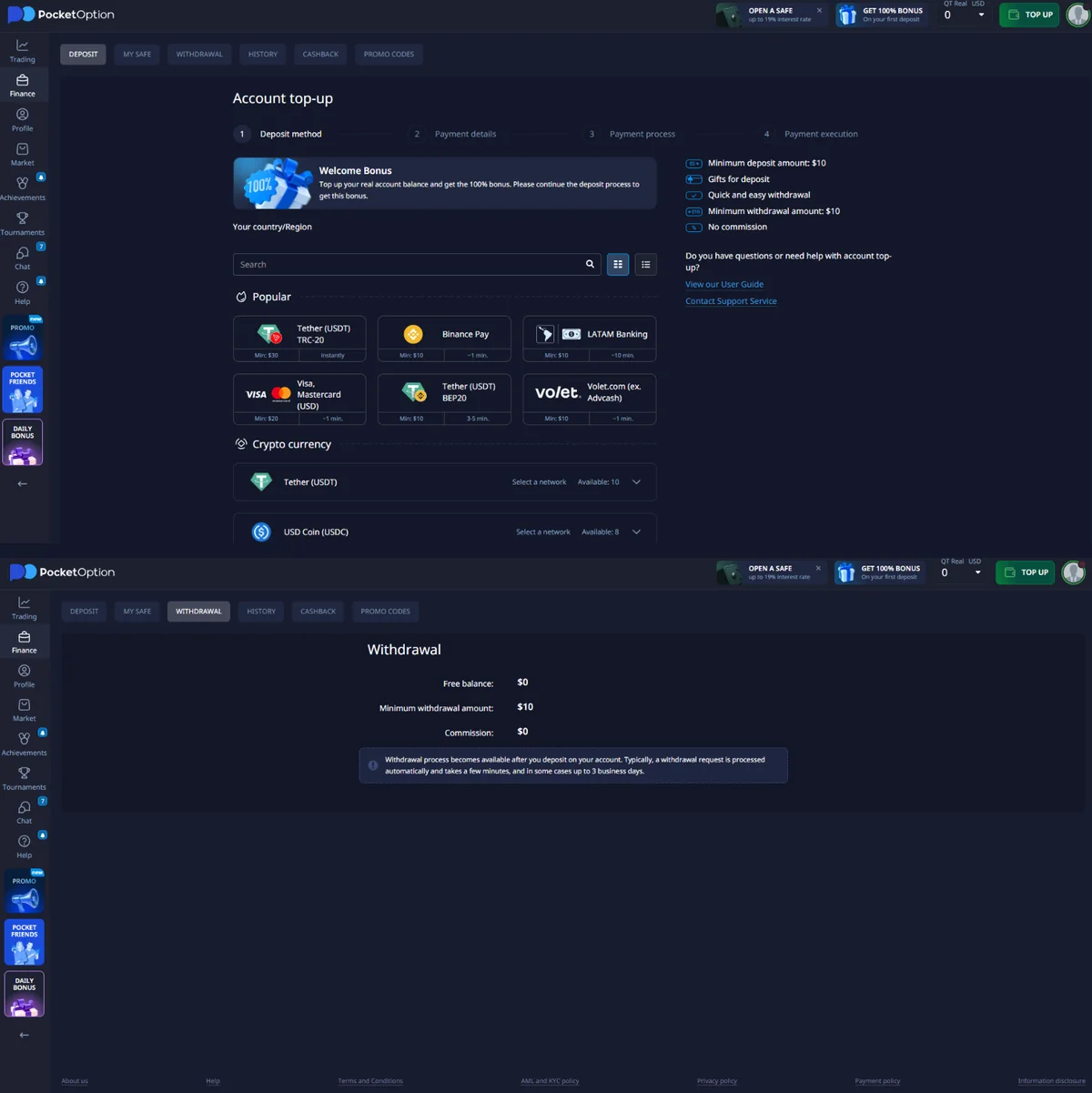
Pocket Option publishes withdrawal examples starting from $10 for selected payment methods, including several e-wallets and card routes. Other methods can require more: the operator's examples include different minimums for particular tokens and networks. The exact limits are those displayed for the selected withdrawal method in the account dashboard.
According to the operator's Payment Policy, section 5.8, funds are debited from the trading account within five business days. This is not a guarantee that the recipient bank, card or wallet will receive the funds in five days. External payment processing may take longer; the policy separately explains different timing for electronic payments and direct bank wires.
Withdrawal checklist: method, identity and bonuses
- Complete any identity/address checks requested through your profile.
- Open Finance / Withdrawal and select an available method.
- Where required, use the funding source/account previously used for your deposit; confirm the account holder's name.
- Check the precise minimum, currency, provider fee and available balance.
- Review the status of active deposit bonuses and any conditions affecting the withdrawable amount.
- Submit the request and track its status in the balance history. Contact support if delivery exceeds the published timeline.
For reference, a published operator article illustrates a $10 minimum for some card/e-wallet routes, but these examples are not an audited minimum for every country and method.
Pocket Option Identity Verification and Account Details
Pocket Option's getting-started flow includes an account-verification step. It directs registered users to their profile, where personal details and requested identification information can be entered. The platform may ask for identity and address documents before enabling the relevant account functions.
Verification belongs to the profile and payment workflow rather than the trading chart. Users can inspect the requested fields and upload instructions from their own account. The requirement for additional information can depend on account activity, funding and the current verification state.
Our archived English screenshots document the Quick Trading workspace and cashier. They do not establish that every account has completed identity verification, so no universal verification-completion claim is made for the service.
Pocket Option Country Restrictions and Account Eligibility
The operator's English-language public site states that it does not provide service to residents of EEA countries, the United States, Israel, the United Kingdom, the Philippines, Japan or Brazil. These are the operator's stated service restrictions as checked in October 2026, not an exhaustive analysis of local financial law.
Country eligibility is different from a payment method being visible. Before signing up, verify both local legal requirements and the operator's current service terms. Do not use a VPN, false residency or third-party details to bypass restrictions. This directory is independent and does not establish eligibility.
Pocket Option Mobile and Web App Access
Pocket Option provides browser access and publishes mobile application options. For Android, use only the official site's current app/download pathway, checking the developer and installation source. For iPhone, verify the current browser or App Store route presented by the operator rather than following a third-party APK listing.
After signing in, the essential tasks remain choosing Quick Trading or QT Demo, selecting assets and controlling a trade amount/expiry. Available menus, country eligibility and tools such as AI Trader can differ across devices and account versions. No app listing overrides the operator's country restrictions.
Pocket Option Account Features at a Glance
The table below separates trading controls, account tools and cashier functions. It is a navigation reference rather than a rating of the broker or a comparison of promised returns.
| Area | What is available | Where to look |
|---|---|---|
| Quick Trading | Asset chart, time, amount, trade direction and displayed payout | Trading terminal |
| QT Demo | Virtual balance and practice orders | Demo account mode |
| Real account | Available cash balance and order history | Account / trading mode |
| Charts | Instruments, technical indicators and display controls | Chart toolbar |
| Deposits | Payment methods and route-specific amount fields | Account top-up |
| Withdrawals | Request form and compatible payment methods | Cashier withdrawal tab |
| Verification | Personal information and requested documents | Profile settings |
| Mobile | Web and supported mobile access routes | Browser or available app |
Pocket Option in the Trading Platform Directory
Rating Broker organises platform information by product, account access, trading controls and payment functions. Pocket Option is listed for its Quick Trading and QT Demo interface. BinoDex has separate Digital Options and Futures screens, while other profiles cover their respective trading and account arrangements.
For a separate examination of the platform's Quick Trading workflow, see the Pocket Option Quick Trading test material on DigitalOptions.co. This editorial link provides additional practical context without repeating the same article here.
You can also return to the Trading Platform Directory to browse account features across the available broker profiles.
Open Pocket Option and Explore the Platform
The most direct way to explore the account is to open the broker and examine the trading menu. Start with the platform workspace or QT Demo, identify the asset selector and order settings, then use the account navigation for deposits and profile details when needed.
For mobile access, use the installation or web-app options shown inside the current platform. The interface and account routes are the most useful references for present-day availability; archived screenshots are included to show the main controls.
Trading involves the risk of losing funds. Practice mode is virtual and does not generate withdrawable proceeds. Read the Risk Disclosure and Affiliate Disclosure for site-wide explanations.
Pocket Option Broker FAQ
What is the Pocket Option official website?
Use the account-access link in this guide, which follows a disclosed partner route. Rating Broker is an independent directory and is not the trading platform or a login service. Verify the final destination before submitting account details.
How do I register or sign up for Pocket Option?
Use the operator’s Registration entry and follow the email or Google authorization route where available. Complete requested account details, then confirm any residency and age requirements.
Where do I log in and how do I recover my password?
Use Log In on the operator’s website. Follow its password reset process if you cannot access the email-and-password route; Google-linked accounts can require a reset before using a password.
Can I use Pocket Option demo without registration?
The operator advertises a public Free Demo entry. Registered users can also switch into QT Demo through the account interface. Neither requires a real-money deposit just to practice.
How much virtual money is in the Pocket Option demo?
The operator publishes a $50,000 virtual practice balance. Actual on-screen values may differ with the current demo session; virtual funds cannot be withdrawn.
What is the minimum Pocket Option trade?
Published Quick Trading guidance says the minimum contract amount starts at $1, subject to available product and current account conditions.
What is the minimum Pocket Option deposit?
The operator advertises deposits from $5. Some archived real-account payment routes displayed $10–$30 or other amounts; the current cashier method determines the applicable minimum.
What is the minimum Pocket Option withdrawal?
Official guidance gives examples from $10 for some payment routes. Other methods, cryptocurrencies and countries can have different limits; the dashboard is authoritative for the selected method.
How long do Pocket Option withdrawals take?
The Payment Policy states withdrawal funds are debited from the trading account within five business days. Actual arrival at an external bank or wallet is separate and depends on the provider.
Does Pocket Option require identity verification?
Verification may involve identity and address documents. Account/payment rules and the withdrawal method determine what is requested.
What is Pocket Option AI Trader?
An operator update introduced a session-based AI Trader mode in August 2026. Its availability and settings must be checked in the current account; it does not guarantee profits.
Is Pocket Option available in the US, UK or EEA?
The operator’s public service notice says it does not serve residents of the USA, UK or EEA, and also lists Israel, the Philippines, Japan and Brazil.
Can I use Pocket Option on Android or iPhone?
The platform provides web and mobile access options. Use the official platform’s currently listed app or browser pathway and confirm country eligibility before installing.
How do deposits differ from demo funds?
Demo funds are virtual and cannot be withdrawn. Live deposits are handled by the cashier and carry method-specific limits, verification requirements and trading risk.
Pocket Option Quick Trading, Demo and Account Access
Explore the chart interface, account modes and payment options in one place. Use the broker account to view currently available tools and instructions.
Some links on this page are affiliate links. Trading involves financial risk.
Trading products involve financial risk, including the possible loss of deposited funds. Product and payment availability depend on location and current provider terms. Risk disclosure · Affiliate disclosure