
INDEPENDENT PLATFORM WALKTHROUGH
Intrade Bar Broker: Login, Registration & Trading Platform
Explore Intrade Bar's real trading screens, account entry, Sprint controls, tournaments and identity-verification steps. An interface-led guide, with genuine screenshots.
What is documented: Real account-interface captures supplied by the editor, covering signup, login, charts, order settings, tournaments and verification.
What is not independently tested: Funded trading performance, deposits, withdrawals, verification approval or demo-account balances.
01 / PLATFORM GUIDE
What Is Intrade Bar?
Intrade Bar is a trading platform centered on a price chart and a directional, expiry-based order form. In the captured interface, users can select an asset, set a trading amount, choose a time setting and use Call or Put controls. The visible account area also includes Profile, Statistics, Tournament, Check quotes, Deposit, Withdrawal, Security, Verification and Settings.
This layout makes several important actions accessible without leaving the trading workspace. Asset tabs run across the top of the terminal, the main candlestick chart fills most of the screen and the right-hand panel contains the controls for a proposed order. A separate panel shows open orders, pending orders and past activity.
The term broker is often used in searches for Intrade Bar, but the practical question for this guide is how its browser interface functions. An interface screenshot does not confirm the legal status of an operator, the accuracy of every price feed or the availability of any particular payment method. Those matters require separate verification from current account documents and applicable rules.
A quick map of the platform
- Account entry: Log in and Sign up appear on the public landing screen.
- Chart: The trading view has candlesticks, timeframe controls, indicators and drawing tools.
- Order form: Amount, trade time, displayed payout and Call/Put buttons are grouped together.
- Account navigation: Profile, Statistics, Security, Verification and Settings appear in the sidebar.
- Additional sections: Tournaments, deposit and withdrawal menu entries are visible, with details varying by account and session.
02 / PLATFORM GUIDE
Intrade Bar Registration: How the Sign-Up Form Works
The registration capture shows a modal titled Create your account, with the Sign up tab selected. The visible fields request an email address and a password. A password-generation option appears beside the password field, and the form displays password-character requirements below it. The user must also acknowledge the Terms of Service and Privacy Policy before proceeding.
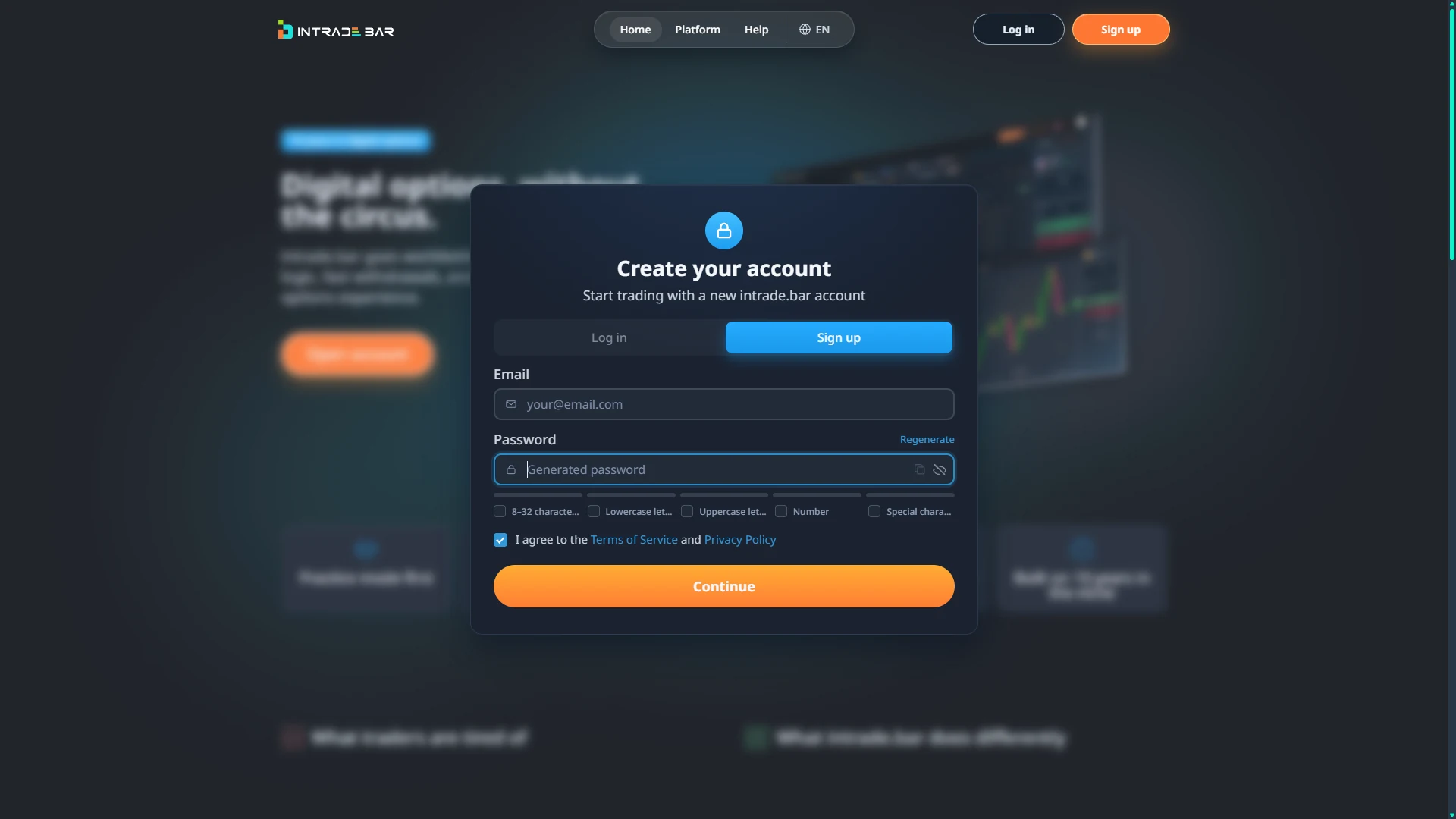
The visible sign-up sequence can be described in five steps:
- Open the registration window from the public platform page.
- Enter an email address that you control and can access later.
- Enter a password that satisfies the checks shown in the form.
- Read the current terms and privacy information, then select the acknowledgement only if you agree.
- Use Continue and follow any next instructions displayed by the platform.
The screenshot confirms this first step of the process. It does not show a completed registration, any email-confirmation step or the exact information requested on later screens. Those should not be invented in an instructional article.
Account-access detail worth noticing: registration and login are two tabs within the same account-entry experience. This is useful for a returning visitor who opened the wrong window: the tabs let them switch without navigating through unrelated menus.
03 / PLATFORM GUIDE
Intrade Bar Login: Where Returning Users Sign In
For existing account holders, the Welcome back modal displays an email field, a password field and a Log in button. A Forgot password? link sits below the password input, and the Sign up tab remains available if a visitor needs a new account.
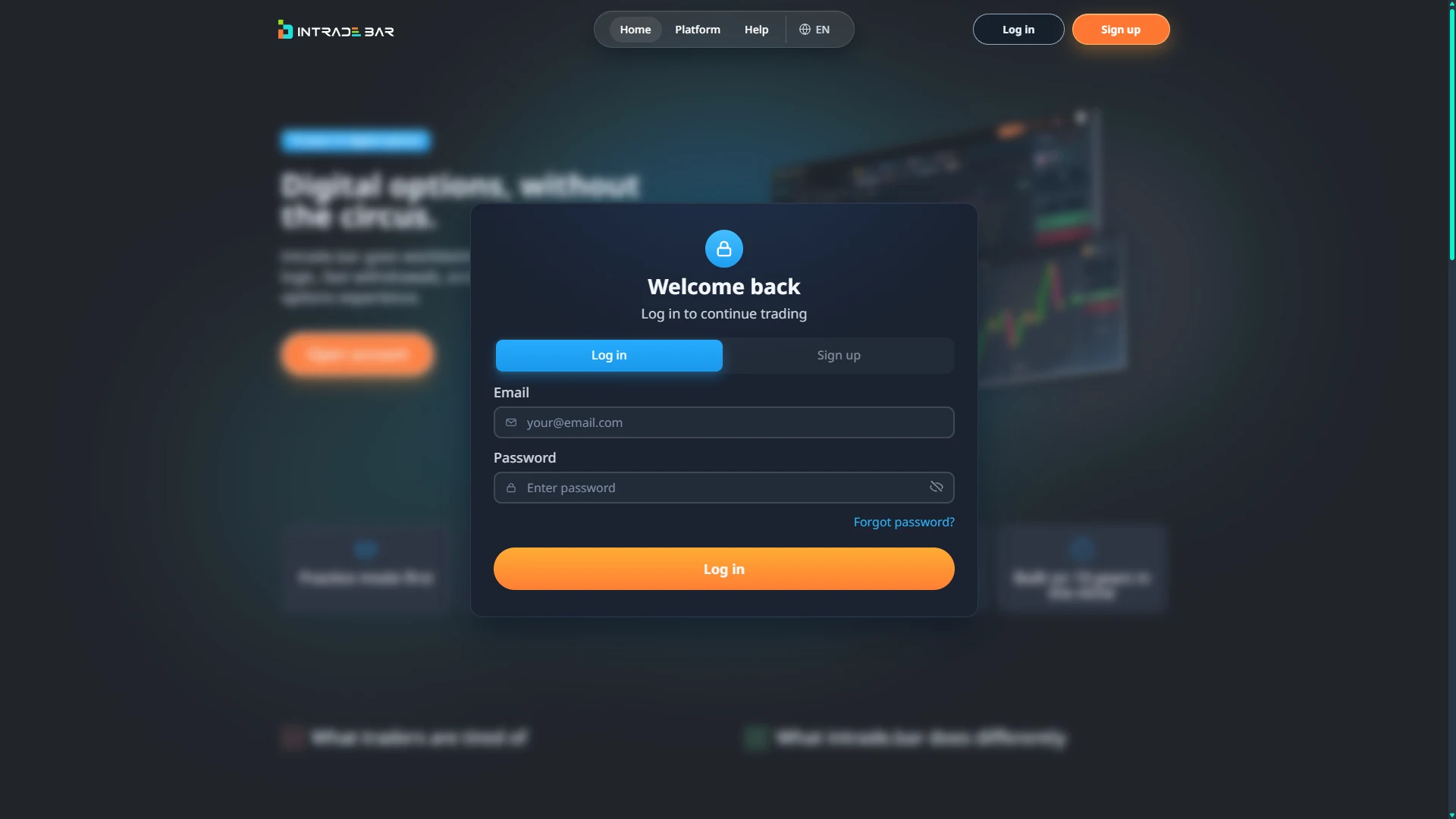
A typical returning-user path is straightforward: open the account-access window, select Log in, enter the registered email and password, and submit. If the password is unavailable, the visible recovery link is the appropriate starting point; this article does not claim to have tested recovery-message delivery or recovery timings.
After signing in, the screenshots show an account-oriented workspace rather than a public marketing page. Navigation changes to a vertical menu or compact sidebar, with dedicated entries for statistics, verification and payments. The captured screens are from a Real account in RUB, which matters when interpreting example stake amounts. They are not proof that the same account conditions apply to every country or currency.
To protect credentials, sign in only through the platform route you independently intend to use. Keep passwords private, confirm the current account terms and do not treat any external directory—including this one—as the platform operator.
04 / PLATFORM GUIDE
Inside the Intrade Bar Trading Platform
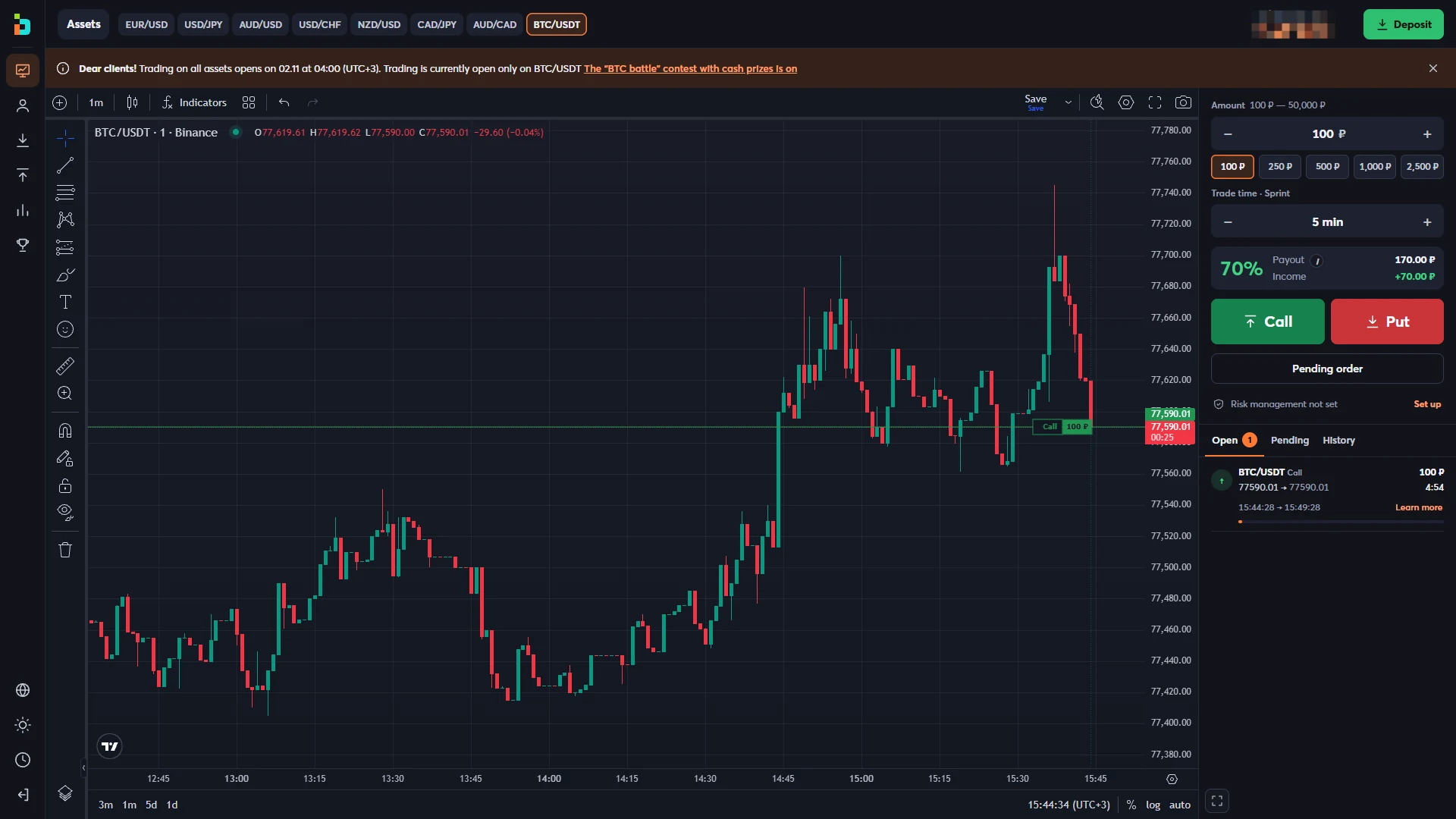
The trading terminal is the most informative part of the captured session. It shows a chart-focused layout with asset tabs across the top, chart tools on the left and an order panel on the right. The screenshot featuring BTC/USDT provides a clear example of a live-looking chart with the asset label, candlestick series, price markers and a vertical time scale.
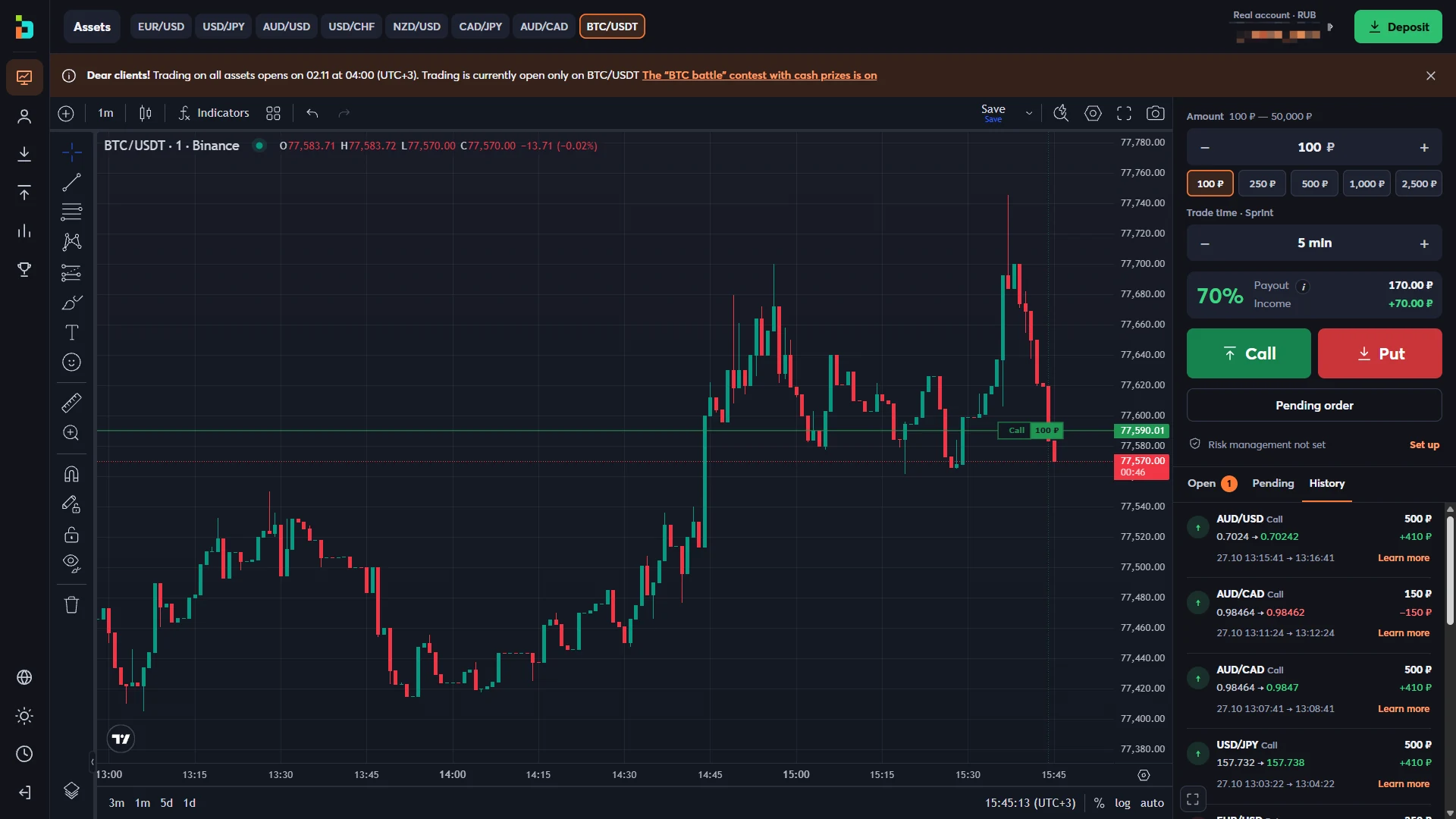
The amount controls on the right include a current stake and selectable preset values. Below them is the trading-time setting. The large green Call and red Put buttons express the two directions of the expiry-based order: Call when predicting a higher closing price and Put when predicting a lower closing price. An order may result in a loss; the direction buttons do not forecast the market.
One captured BTC/USDT screen displays a 100 ₽ amount, 5 min Sprint time and 70% advertised payout at that moment. Another shows a 500 ₽ order amount on an AUD/USD chart with a one-minute time setting. These are observed interface examples, not permanent minimums or fixed returns. The instrument, account denomination, session and market conditions can all change the options shown.
The right-hand panel also contains Open, Pending and History tabs. These provide different kinds of order visibility: what is active, what is queued and what has already been recorded. The screenshots show that the panel is part of the same terminal rather than a separate reports page.
What the 70% payout example means
On the AUD/USD screenshot, the panel displays a 500 ₽ amount and 70% payout. It separately shows 850 ₽ as the total payout illustration and +350 ₽ as income. This is the platform's example of a successful outcome for the selected order terms, not a promise that the trade will finish in profit. Losing outcomes can consume the amount placed on the trade. Payout percentages are not the same as a probability of winning.
05 / PLATFORM GUIDE
Assets, Charts and Order Controls
Asset discovery is more detailed than a simple dropdown. The captured Assets panel contains category filters for All, Favorites, Currencies, Metals and Crypto, plus a list of instruments with favorites controls. The top of the terminal also carries open asset tabs, allowing the user to return to a chart already selected.
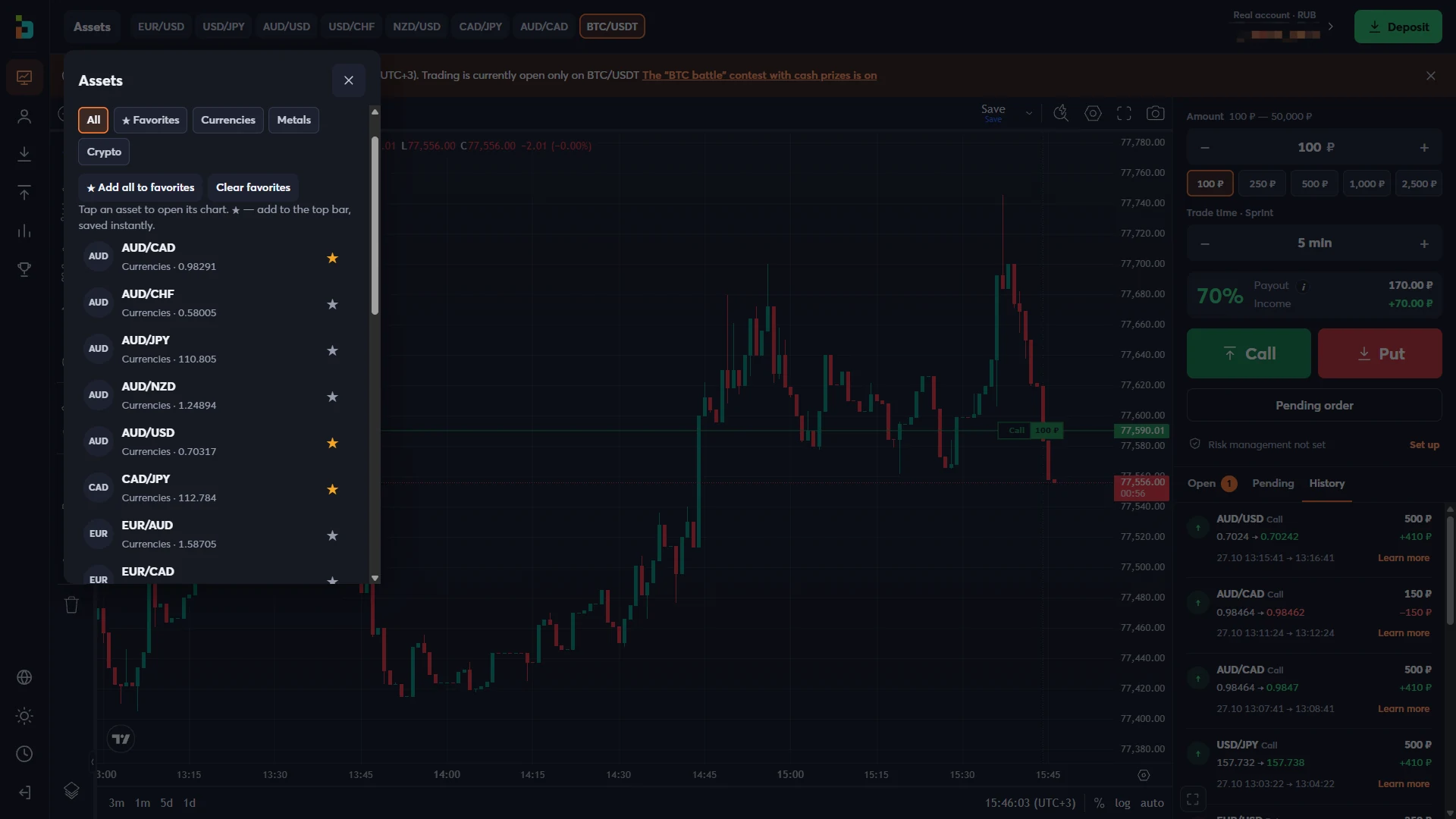
For example, the screenshots show currency pairs such as AUD/CAD, AUD/CHF and AUD/USD, along with a BTC/USDT chart in the main workspace. Some instruments have a visible source label near the chart heading—for example, FXCM on AUD/USD and Binance on BTC/USDT. These are labels shown by the terminal; they are not independent verification of a quotation feed or confirmation of a formal data agreement.
The captured chart toolbar includes timeframe choices, Indicators, drawing icons and viewing tools. This is useful for describing how an account holder navigates the interface: choose an instrument, inspect its chart, review the available timeframe and trading terms, then decide whether to use any order controls. There is no need to portray the screen as an investment recommendation.
The chart and trading-time controls should not be confused. The chart timeframe affects how the displayed price candles are grouped; the order's trade-time setting determines the expiry condition selected for an order. A one-minute chart does not, by itself, mean a one-minute order. The screenshot demonstrates both control areas on the same screen.
06 / PLATFORM GUIDE
Classic and Sprint: Understanding the Trading Modes
Intrade Bar materials and the captured account views refer to Classic and Sprint as separate trade modes. The screenshots supplied for this guide specifically document Sprint, with examples of 1 min and 5 min in the trade-time field. They do not include an expanded Classic configuration window.
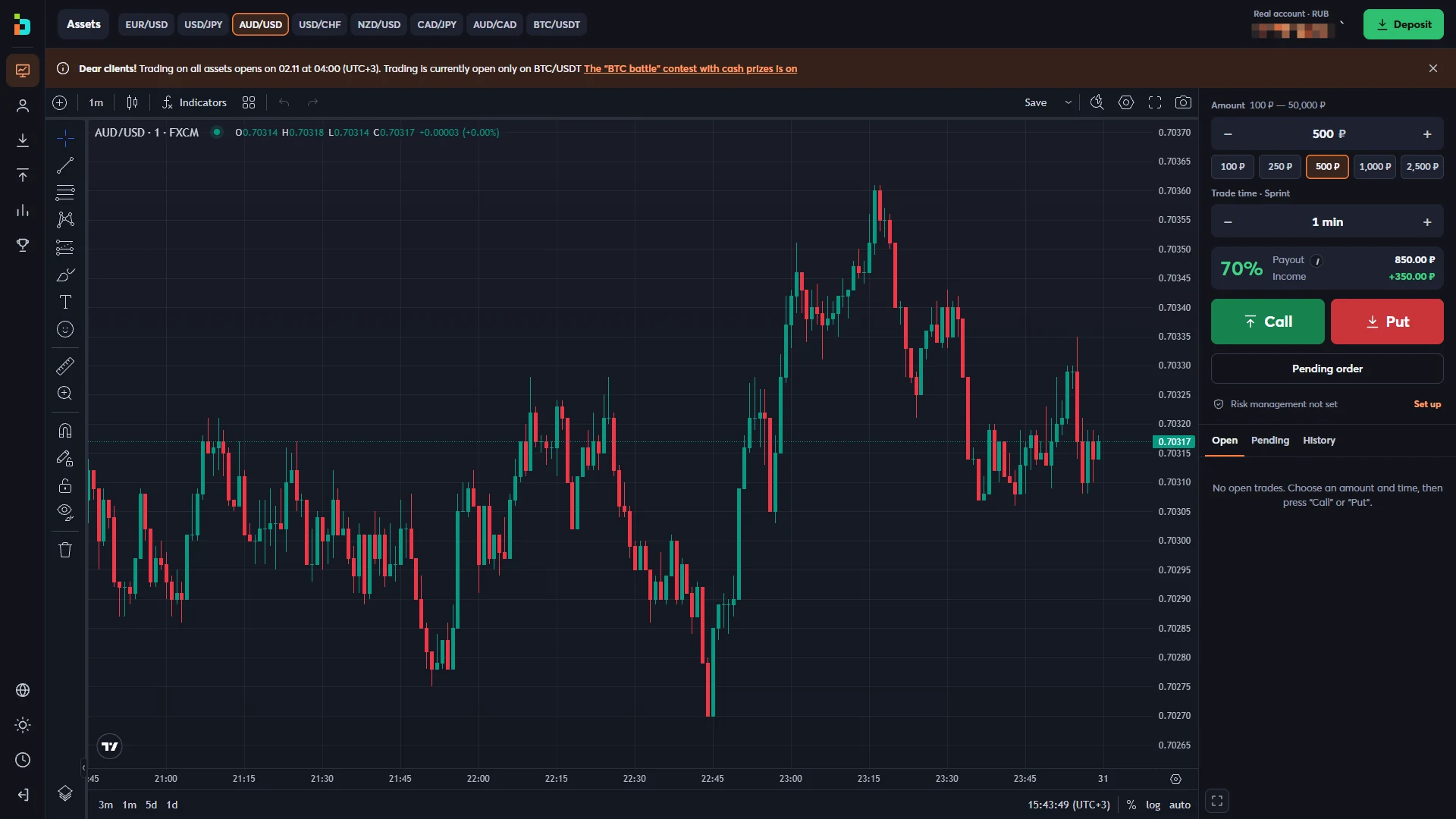
Sprint presents the trade duration as a direct control in the order box. The amount, duration and payout appear together, so a user can inspect the terms before placing an order. When the displayed payout changes, the displayed income example changes too.
Classic is identified as another platform mode, but its current expiry choices and interface rules should be verified in the actual Classic screen. The article will not publish exact Classic timing rules from old directories while the captured evidence covers only Sprint.
Whether selecting either mode, users should distinguish three settings: the asset being viewed, the chart timeframe and the order expiry. These settings affect different parts of the interaction. Fast expiry does not make an option easier to predict, and short-duration products can produce rapid losses.
07 / PLATFORM GUIDE
What the Intrade Bar Screens Actually Show
Most trading-platform descriptions repeat a feature list without showing where features are located. The supplied account captures allow a more precise screen-based summary. Here are the main observations, with their limits made explicit.
1. Account entry is organized into two modal tabs. Registration and login appear over the public landing page. Both screenshots show their inputs and the expected action button, but not a complete authentication test.
2. The terminal keeps chart and order controls side by side. The main chart is visible while amount, time, payout and Call/Put controls remain available. There is no need to open a separate screen just to see the order form.
3. Asset selection is not limited to the visible top tabs. The Assets panel reveals category filters and favorites. The navigation supports currency and crypto exploration within the same captured interface.
4. The screenshot states a payout, not a success rate. The 70% example is a displayed return calculation for a chosen order. It does not mean a 70% chance of winning or a recurring payout available for all instruments.
5. Open orders and trade history have dedicated views. The account session displays a right-side history panel and an example of an open order. This confirms the visibility of order records, not independently audited performance.
6. Account tools extend beyond trading. The sidebar includes verification, security, statistics, withdrawals, deposits and tournaments. Their mere presence does not confirm all routes or services will be available to a particular user.
08 / PLATFORM GUIDE
Intrade Bar Tournaments and Account Competitions
The account menu contains a Tournament section. In the provided capture, its page includes three areas: Monthly tournament, Annual championship and a weekend BTC battle. A tab row provides navigation among Overview, Monthly, Annual and BTC battle. The layout includes individual cards with images, brief descriptions and links for details or participation information.
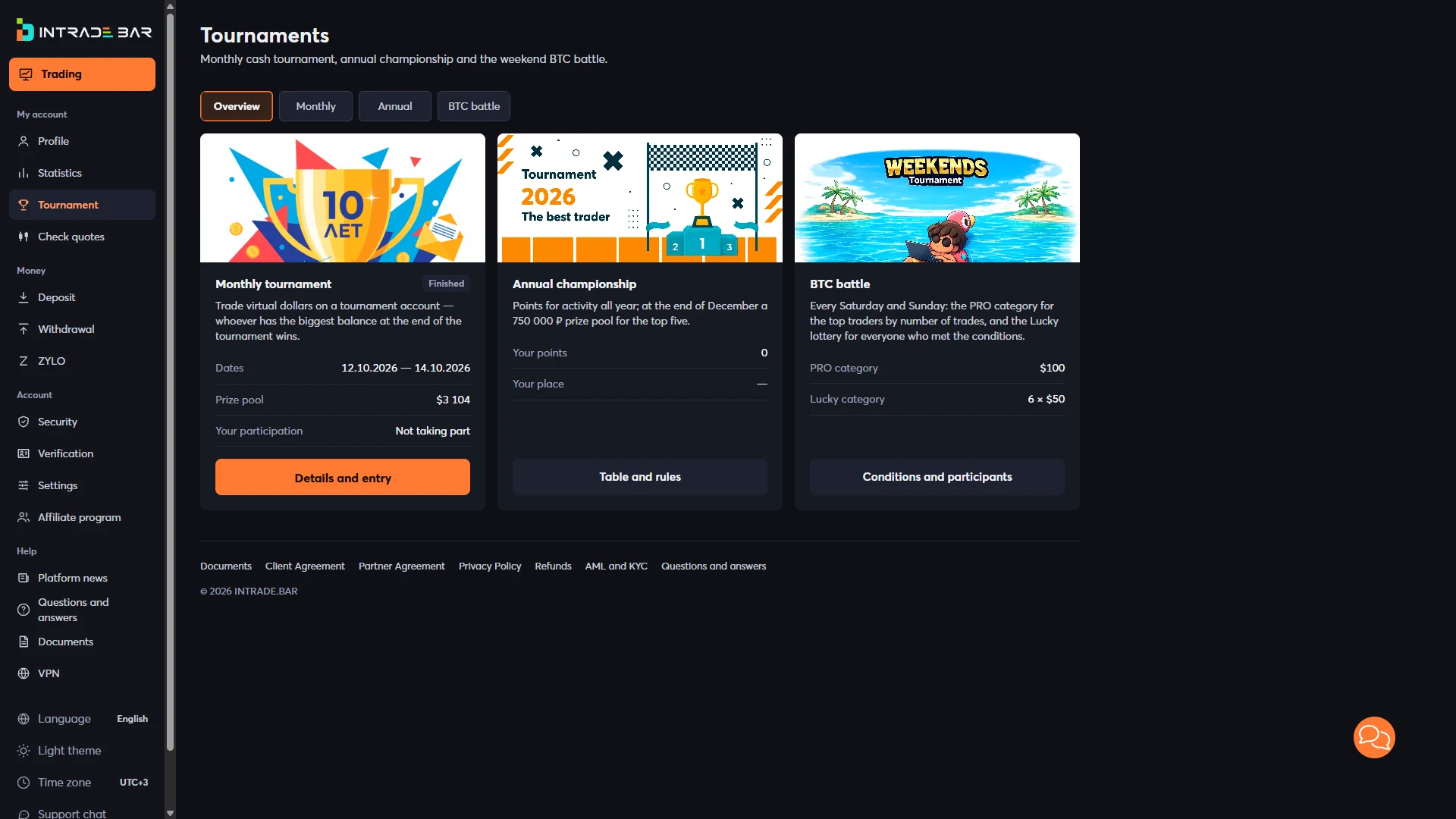
The monthly card in the captured session is marked Finished, a useful reminder that tournament listings are time-specific. Prize pools, eligibility rules and participant status displayed in one screenshot should not be represented as permanent terms. The annual card illustrates point and placement fields, and the BTC battle card refers to different participant categories.
A visitor interested in these features should open the current competition rules before taking part, checking any registration criteria, eligible assets, stake requirements and prize conditions. The screenshot documents the presence and general organization of the tournament section; it does not establish that a particular user is eligible or will receive a reward.
09 / PLATFORM GUIDE
Account Verification: Documents and Identity Checks
The account screenshots show an Account verification screen with step-by-step instructions and a file-upload area. Its introductory note says that certain deposit and withdrawal methods are unavailable without verification. The instructions ask for a passport, a handwritten note containing specified account details and a photograph of the account holder holding the identification and note.
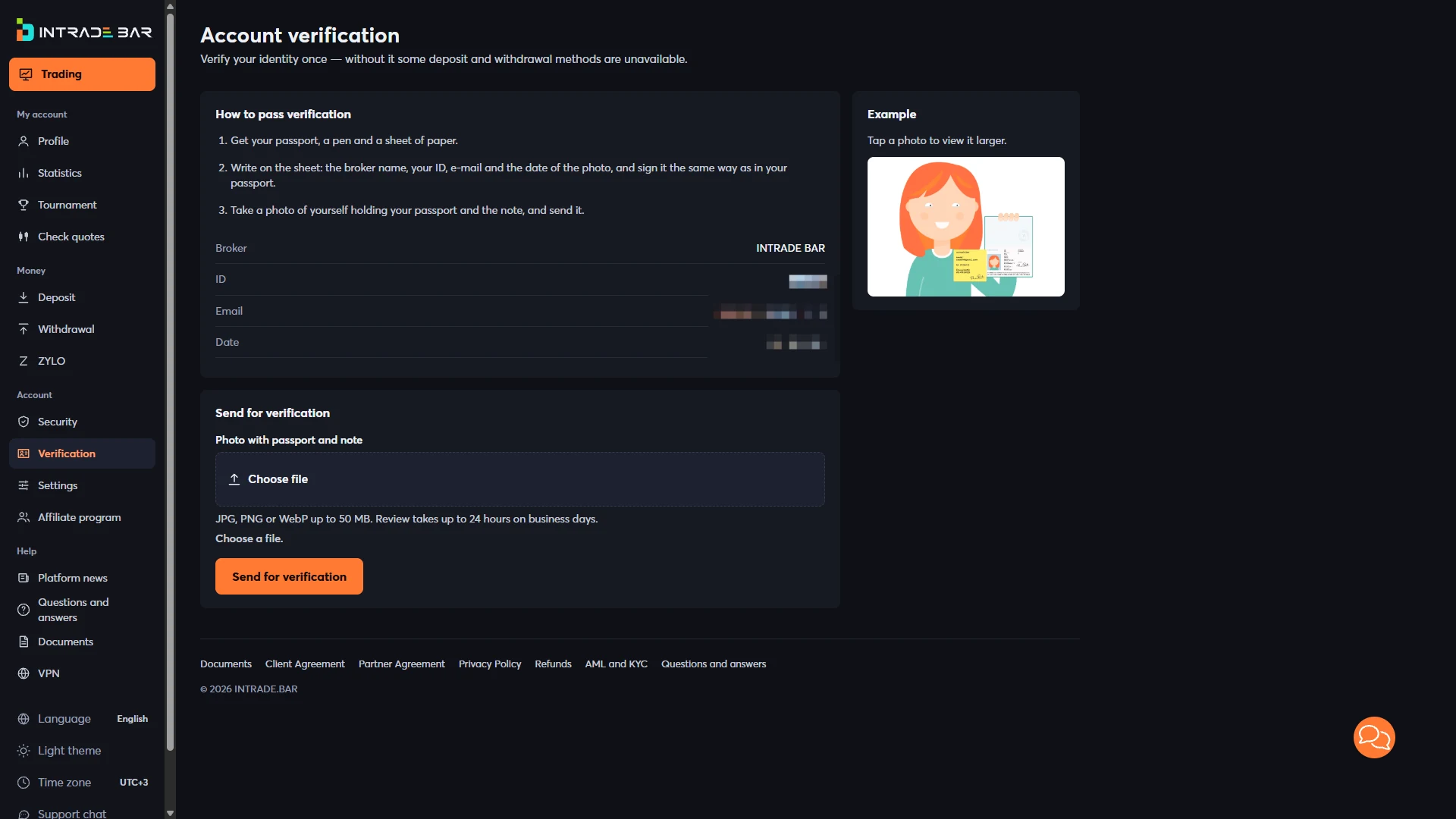
The upload control lists JPG, PNG or WebP files up to 50 MB, and the page displays a review-time notice. That is what the captured interface says, not an independently measured processing time. Requests and file constraints can change, and any upload should follow the requirements visible in the account at the time of submission.
This is a significant step for users because it involves sensitive personal information. Before sending a passport photo or selfie, confirm the destination, understand the privacy and retention terms, and make sure the service is available and appropriate for your location. We did not upload documents or test verification approval for this article.
It is also important to separate registration from verification. Registration creates account credentials; verification is an additional identity process that may affect payment methods or access. Someone browsing the interface should not assume that successful signup means every cashier action is enabled.
10 / PLATFORM GUIDE
Intrade Bar Demo and Practice Access
Demo availability is an important search topic, but the supplied screenshots do not contain a demo-account balance or an active practice-mode switch. In fact, the chart screens explicitly show Real account · RUB. Therefore, we cannot use these images as proof of a specific virtual balance, free demo duration or demo-to-real switching workflow.
Some public descriptions of Intrade Bar mention practice access. However, a practical guide needs a clearer distinction between a published claim and what the captured interface demonstrates. To verify the current practice arrangement, look for a Demo account option or account-type switch in the logged-in profile/settings area, confirm whether a deposit is required, and check whether the practice instruments and trading controls match those displayed in the real-money terminal.
If you are new to expiry-based trading, investigate the practice option before considering funding. A simulator can help explain where buttons and terms are located, but practice outcomes do not predict performance with real funds. No demo trades were placed or reviewed as part of the screenshots used here.
11 / PLATFORM GUIDE
Deposits, Withdrawals and Payment Conditions
Two separate sidebar entries—Deposit and Withdrawal—are visible on the account navigation shown in the tournament and verification captures. That confirms the presence of cashier navigation, but the actual cashier pages were not supplied for this article. We do not have screen-based evidence for a universal minimum deposit, a fixed withdrawal threshold, payment-provider list or an average processing time.
When reviewing a trading account, the most useful payment questions are concrete: which routes are available in the account's country and currency, which identity checks apply, whether the provider charges a fee, what the minimum and maximum amounts are, and how a request can be tracked. It is also worth checking whether the funding method imposes its own costs or restrictions.
Verification may affect which payment methods are shown. The visible KYC page states that some deposit and withdrawal methods are not available without identity verification. That is more reliable evidence for this guide than copying generic payment minimums from unrelated sites or an older version of the platform.
A deposit screen and a withdrawal screen can be added later if available. Until then, we should label payment terms as unverified rather than assign convenient figures to the platform. We did not fund an account, request a withdrawal or measure payment-processing time.
12 / PLATFORM GUIDE
What to Check Before Using the Trading Account
The screenshots show how much of the platform is accessible from a single workspace. They also illustrate why individual settings matter. Before moving from information-gathering to account activity, make sure you understand the product mechanics, the selected asset, the exact trade duration, the amount at risk and how the displayed payout is calculated.
Check account verification requirements before sharing documents, and inspect any current cashier terms before sending funds. Do not assume that a successful demo session, a finished tournament or a positive example in trade history represents future results. Expiry-based trading can result in losing the entire amount placed on an order.
The purpose of this Intrade Bar guide is to show the visible interface with clear labels and genuine screenshots. It is not an audit of the platform's financial soundness, a guarantee of execution quality or personalized investment advice.
13 / QUICK ANSWERS
Frequently Asked Questions About Intrade Bar
What is Intrade Bar?
Intrade Bar is a browser-based expiry-trading platform. The supplied screenshots show asset tabs, charts, amount and expiry inputs, Call/Put order controls, trade history and separate account-navigation sections.
How do I register on Intrade Bar?
The visible Sign up form asks for an email address and a password, displays password requirements, includes a terms acknowledgement and provides a Continue button. Later steps, if requested, should be followed on the current platform screen.
Where is the Intrade Bar login form?
The public landing page offers a Log in option. The captured modal includes email and password fields, a login button and a Forgot password? link for account recovery.
What is the difference between Classic and Sprint?
The account materials refer to both modes. The supplied trading screenshots specifically show Sprint, including one-minute and five-minute duration examples. Current Classic choices should be checked inside its own mode screen before describing exact expiry rules.
Is there an Intrade Bar demo account?
Public references discuss demo or practice access, but the screenshots used in this guide show a Real account rather than a demo balance. The latest demo access route, duration and virtual funding need confirmation from the actual account interface.
What can I trade on the platform?
The supplied asset selector shows categories including Currencies, Metals and Crypto, with currency pairs and a BTC/USDT chart visible. Availability and trading terms can depend on the instrument and session.
Does Intrade Bar require identity verification?
The captured verification page requests identity documents and a photograph with a note, and states that some payment methods require verification. The screenshot shows the procedure, not proof of an approved identity check.
How can I check Intrade Bar deposits and withdrawals?
The account sidebar contains Deposit and Withdrawal entries. Open the applicable cashier section to check your account's current methods, limits, fees and verification requirements; these details cannot be reliably established from the screenshots supplied here. Editorial note: All platform screenshots are actual account-interface captures provided for this page. The 3D HERO is decorative artwork, not a real terminal screenshot. Screens and terms may change. This site is an independent information publisher, not the operator of Intrade Bar. External platform links may be affiliate links; binary/digital options are high-risk products and can result in a complete loss of the amount staked.
A PRACTICAL PLATFORM REFERENCE
Continue Exploring Trading Platforms
Return to the independent broker directory to compare account features, visible platform tools and supporting evidence.
Browse all platformsEditorial note: The screen captures show the platform interface from a specific account session. The 3D HERO is decorative artwork, not a screenshot. This site is an independent publisher, not the platform operator. Sponsored links are identified. Expiry-based trades can result in a complete loss of the amount at risk.